Getting started
Advently adds an advent calendar to your WooCommerce store. Each day one door opens and gives the shopper a coupon made just for them, a gift idea from your shop, or both. This guide covers everything from installation to reading the results.
Requirements
| WordPress | 6.6 or newer |
|---|---|
| WooCommerce | 8.0 or newer (tested up to 11.2), classic or block cart and checkout, HPOS or posts storage |
| PHP | 7.4 or newer |
| Who can set it up | Users who can manage WooCommerce (administrators and shop managers) |
Installation
- In WordPress, go to Plugins → Add New → Upload Plugin and choose
advently.zipfrom your download. - Click Install Now, then Activate. WooCommerce must already be active.
- Open WooCommerce → Advently. The setup starts by itself the first time.
The three-step setup
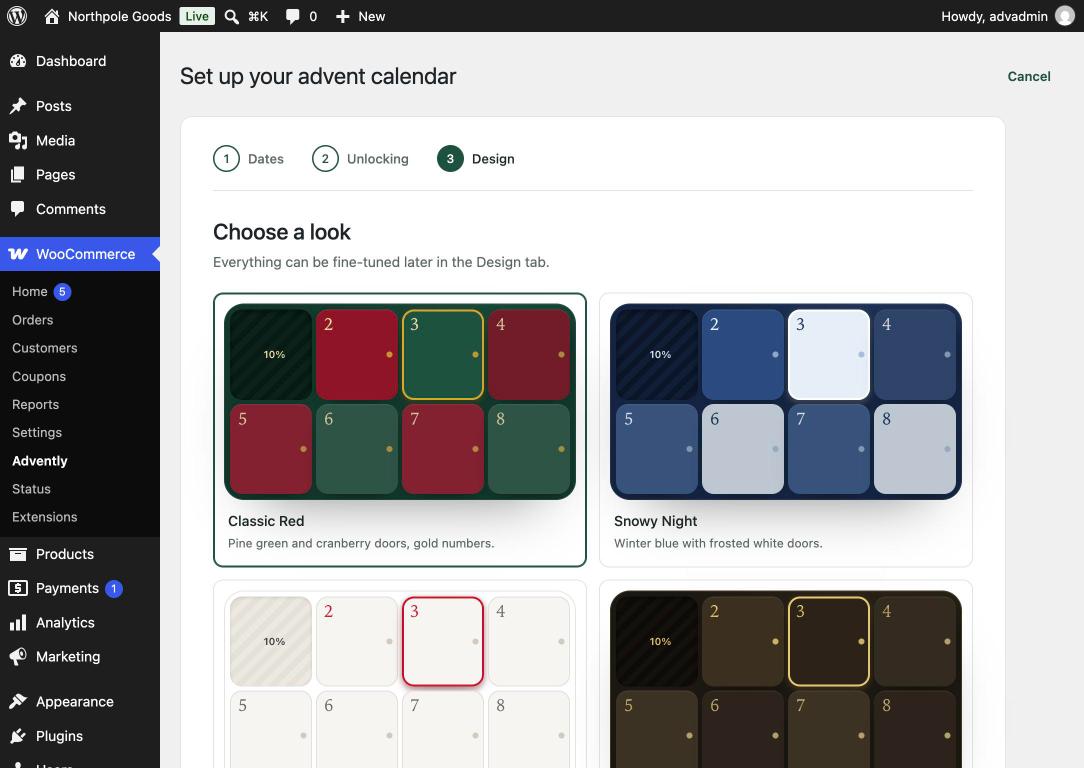
- Dates. Pick Advent (December 1–24), the 12 days of Christmas (December 13–24), a New Year countdown (December 25–31), or your own start date and number of doors (1 to 31). Doors open at midnight in your store's time zone (Settings → General).
- Unlocking. Choose how shoppers open doors (see unlock modes) and what happens when someone misses a day.
- Design. Choose one of four themes and an accent colour.
When you click Create my calendar, every door is filled with ready-made offers: percentages, fixed amounts, free shipping, a free gift (your cheapest simple product in stock), gift ideas from your best sellers, a bigger offer halfway and on the last day, and free shipping in the last days before Christmas. Change any of them afterwards in the Doors tab.
Putting the calendar on a page
There are three ways, and they show the same calendar:
- At the end of the setup, or in Settings → Calendar page, click Create the calendar page. Advently creates and publishes a page called "Advent calendar".
- In the block editor, add the Advent Calendar block to any page. Its sidebar has one option: the title above the doors (leave it empty to hide it).
- Anywhere shortcodes work, add
[advently], or[advently title="Our advent calendar"].
The page you choose (or the newest published page that holds the block or the shortcode) is used for the View calendar link in the admin, the {calendar_url} link in emails and the optional badge.
--adv-max-width in your theme's CSS, for example .advently { --adv-max-width: 1000px; }.Doors
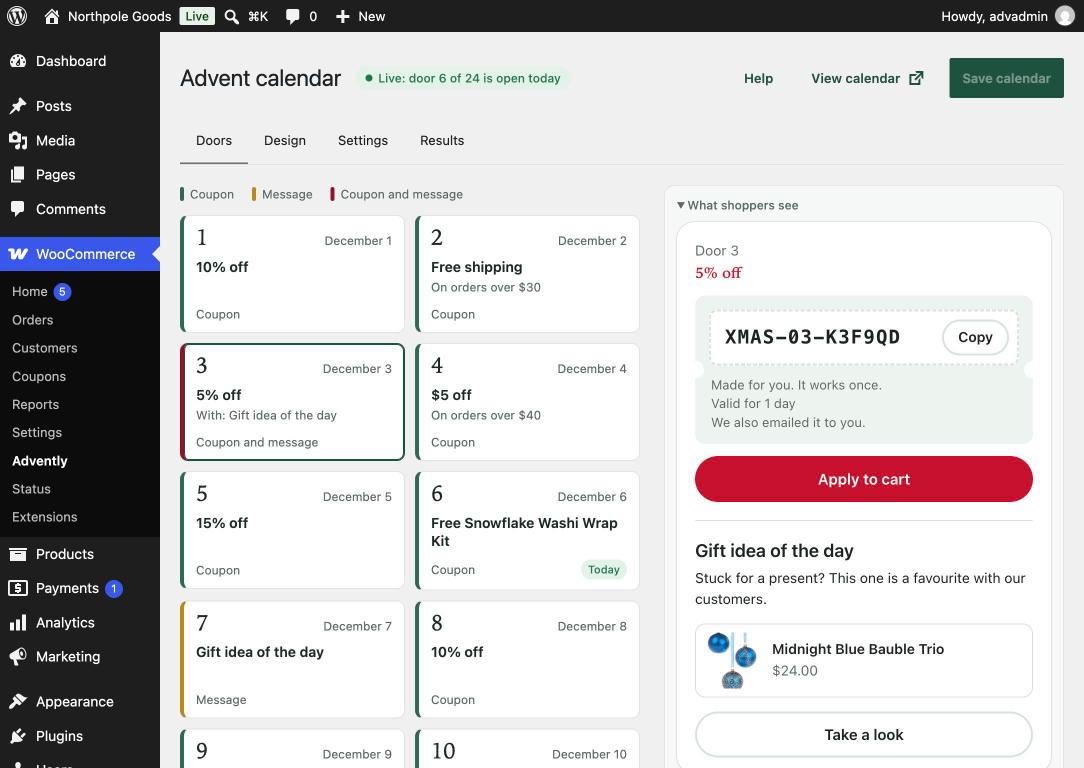
Each card shows the door's day, what is behind it and a warning when something is missing, for example a free-gift door without a product. The coloured edge tells you the door type: green for a coupon, gold for a message, red for both. Click a card to edit that door. The arrows at the top of the panel move to the previous and next door.
Behind this door
| Type | What the shopper gets |
|---|---|
| Coupon | A coupon card with the code, Copy and Apply to cart. |
| Message | A title, text, an optional image and an optional product with a button. |
| Both | The coupon card with the message below it. |
Coupon settings
| Setting | What it does |
|---|---|
| Discount | Percentage off the order, a fixed amount off the order, free shipping, or a free product. A free product is added to the cart at no cost when the shopper applies the coupon. |
| Coupon works for | 12 hours to 7 days after the door is opened, or until the calendar ends. |
| Minimum order | The cart total the coupon needs. 0 means no minimum. |
| Only these products / categories | Limits the discount to those products or categories. |
| Can't be combined with other coupons | WooCommerce's "individual use" option. |
Free shipping coupons need a shipping method that allows free shipping by coupon (WooCommerce → Settings → Shipping → your zone → Free shipping → "A valid free shipping coupon").
Message settings
Title, text (line breaks are kept; simple HTML such as links and bold is allowed), an image from the media library and a link to a product. A linked product appears on the card with its picture, name and price, followed by your button text ("Shop now" if you leave it empty).
Copy a door to other doors
Under the door's title, Copy to other doors… copies everything, only the coupon or only the message. Pick doors one by one, or use All, Weekends or The doors after this one. Copied changes wait for Save calendar.
Design
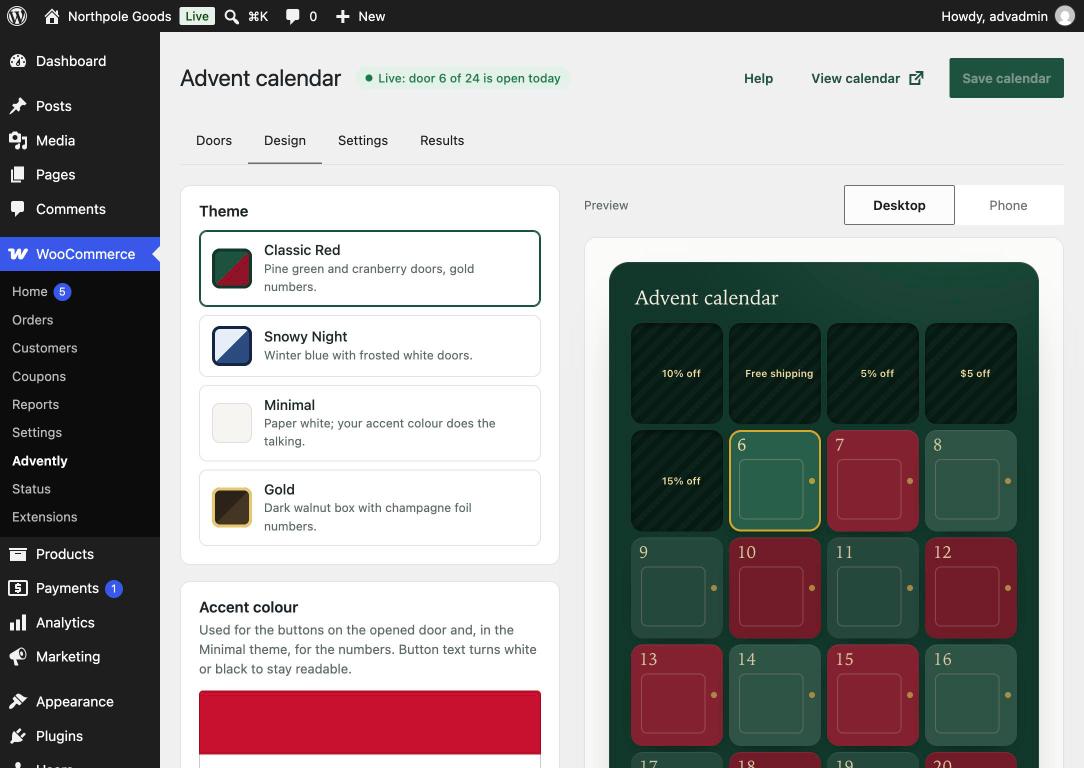
| Option | Choices |
|---|---|
| Theme | Classic Red, Snowy Night, Minimal, Gold. Choosing a theme also sets an accent colour that suits it. |
| Accent colour | The buttons on the opened door (and the numbers in Minimal). Button text turns white or black automatically to stay readable. |
| Door corners | Rounded or square. |
| Door numbers | Classic (serif), Modern (sans-serif) or Handwritten. System fonts only: nothing is loaded from outside your site. |
| Shuffle the doors | Mixes the numbers like a real advent calendar. The order is the same every day. |
| Falling snow | A light snowfall behind the doors. It pauses when the calendar is off screen and is never shown to visitors who turn off motion. |
| Background image | Optional; darkened slightly so the doors stay readable. |
| "Today's door is open" link | Off by default. A small button in a corner of every page while the calendar runs, leading to the calendar page. Not shown on the calendar page, cart or checkout. Shoppers can hide it for the day. |
Settings
Dates
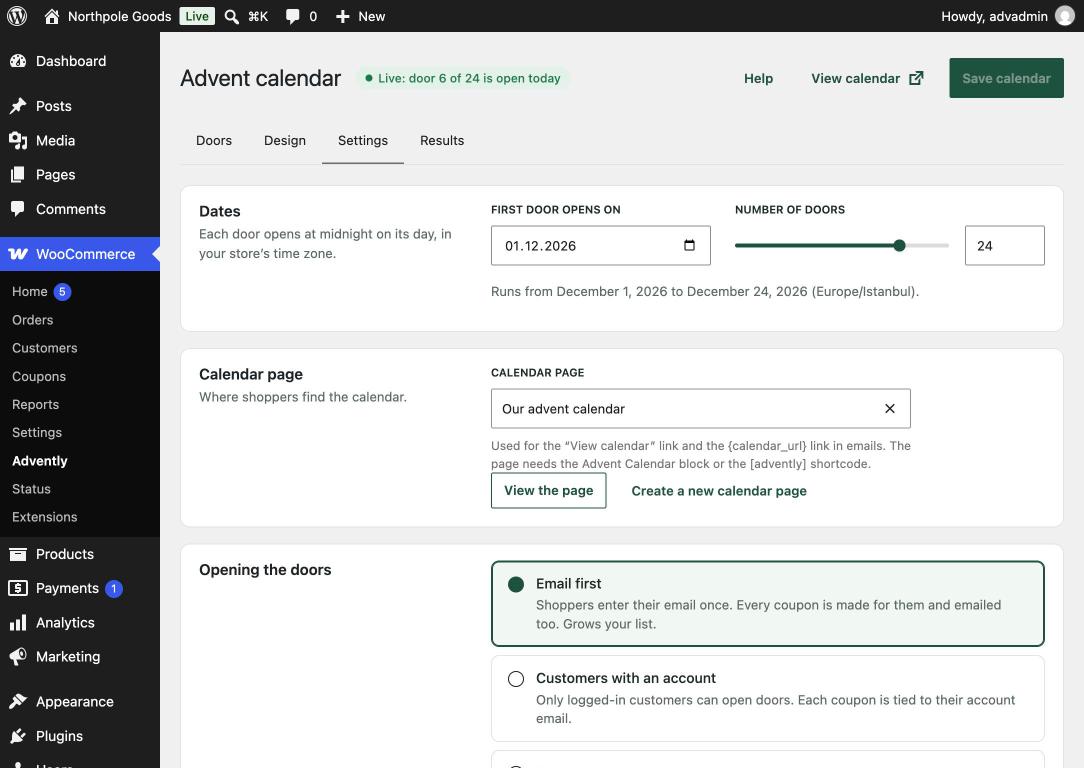
First day and number of doors. Changing the start date begins a fresh calendar: shoppers can open every door again and Results show the new dates only. Coupons already handed out keep working until they expire.
Opening the doors
| Mode | How it works | Coupons |
|---|---|---|
| Email first (default) | The shopper enters an email address once; the calendar remembers them on that device. | One per shopper and door, single use, limited to that email address, also emailed. |
| Customers with an account | Only logged-in customers can open doors; others see a Log in button. | One per customer and door, single use, limited to the account's email address. |
| Anyone | No sign-up. | One shared code per door. Easiest, but codes can be passed around. |
If a shopper misses a day, that door can still be opened with its coupon (default), opened without the coupon, or stay closed.
Offers opt-in. In email mode, a checkbox under the email box lets shoppers agree to receive your offers. It is optional: coupons are sent either way. Leave its text empty to use the default, which names your shop.
Coupon codes
The prefix (letters and numbers, up to 8) starts every code, for example XMAS-07-K3F9QD. Codes avoid look-alike characters (0/O, 1/I).
Coupon email
Sent in your WooCommerce email design each time someone opens a door with a coupon in email mode. Leave a field empty to use the default text shown in grey. Send me a test email sends door 1's email to you, using the texts on screen even before you save.
| Placeholder | Becomes |
|---|---|
{coupon} | The shopper's code |
{discount} | What it gives, e.g. "15% off" |
{expiry} | When the coupon ends |
{door} | The door number |
{calendar_url} | A link to the calendar page |
{shop_url} | A link to your shop |
Start over and data
Run setup again refills every door with the ready-made offers (it asks first; Cancel puts back what you had). Delete Advently's data when the plugin is deleted removes the settings, subscribers and door history on uninstall. Coupons and orders are always kept.
Testing before December
Doors are locked by the server's clock, so before the calendar starts nobody, you included, can open them. Store managers get an owner preview instead:
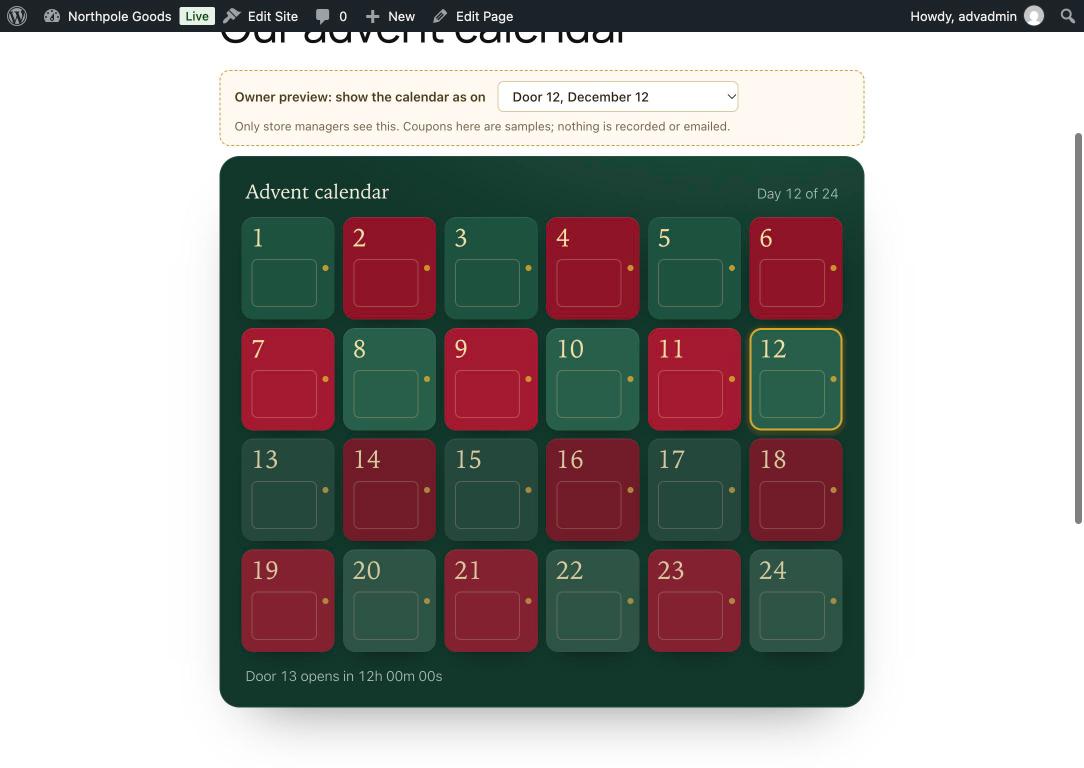
- Open the calendar page while logged in and choose a day in the bar above the calendar, or click Preview this door on your site in the door's settings.
- Doors follow the same rules as on that day. Coupons in the preview are samples (
XMAS-03-SAMPLE): nothing is created, recorded or emailed, and Apply to cart explains that. - Choose Live to see the calendar as shoppers see it now.
Results and exports
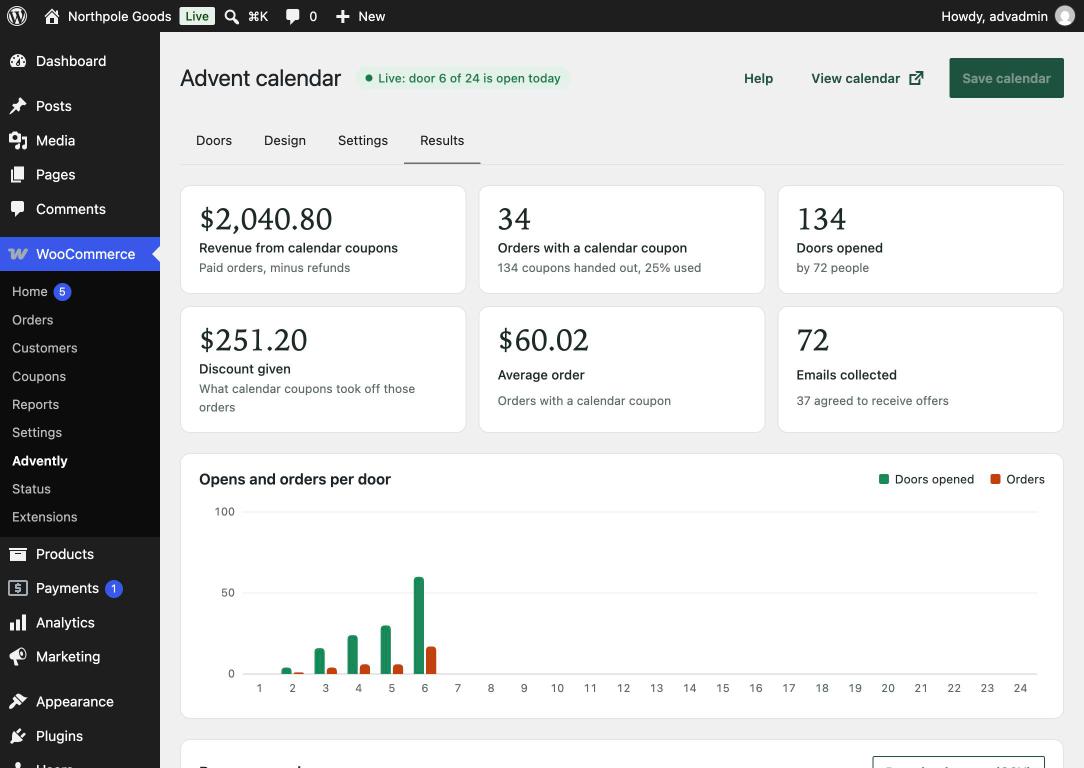
| Figure | Where it comes from |
|---|---|
| Revenue from calendar coupons | Paid orders (processing, completed) that used a calendar coupon, minus refunds. |
| Orders with a calendar coupon | The same orders, and the share of handed-out coupons that were used (not shown in Anyone mode, where one code serves many orders). |
| Doors opened | Every door opened, and by how many people. |
| Discount given | What the calendar coupons took off those orders, stored on the order when it is paid. |
| Average order | Revenue divided by orders. |
| Emails collected | Everyone who entered an email, and how many agreed to receive offers. |
The charts show opens and orders, and revenue, per door; Show the numbers as a table lists them. Download report (CSV) exports the per-door figures. The subscriber list can be searched, a subscriber can be deleted, and Download CSV exports everyone with the date they signed up and whether they agreed to offers.
Orders are linked to the calendar the first time their status changes, so classic checkout, block checkout and orders created in the admin are all counted. Results do not depend on WooCommerce Analytics.
What shoppers see
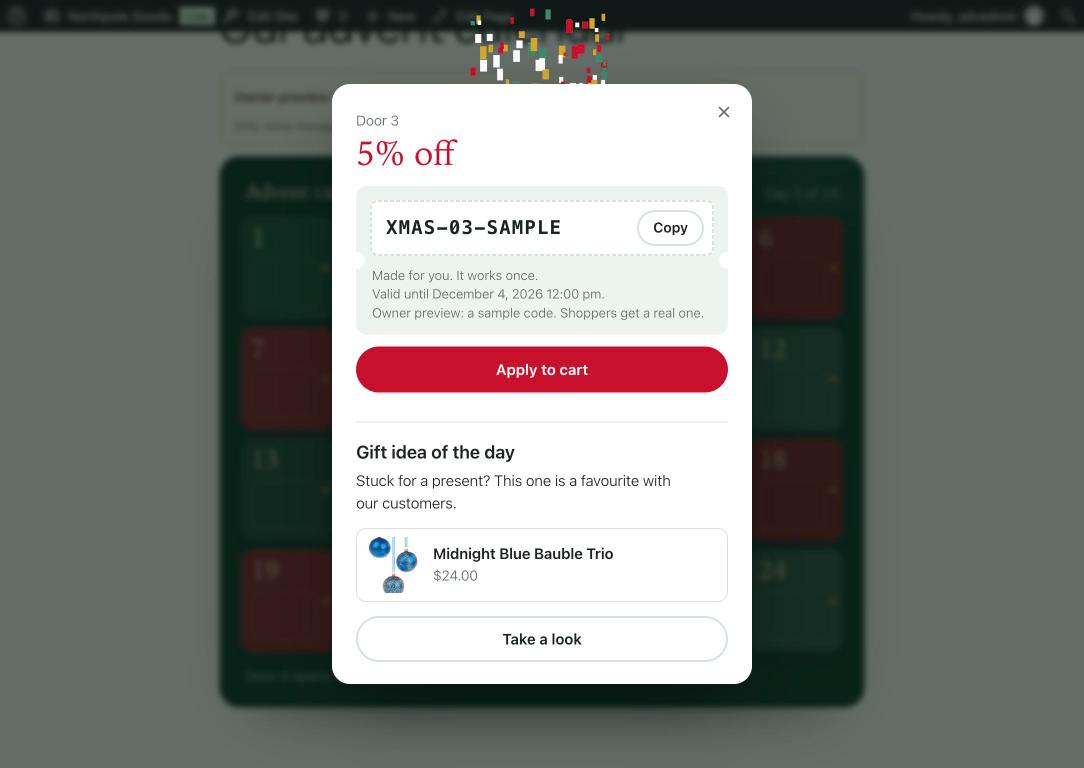
- Today's door glows; doors still to come sit back a little; earlier doors they opened stay open with what was inside.
- A door they open swings open on its hinge and shows the card. Apply to cart adds the coupon (and the free product, for a free-gift door) to their cart and offers a View cart link.
- Locked doors say when they open. A countdown shows the time to the next door.
- On phones the card opens from the bottom of the screen. Doors are buttons, the card can be used with the keyboard alone, and animations are skipped for visitors who turn off motion.
Privacy and GDPR
- In email mode Advently stores the email address, when it was entered, whether the shopper agreed to offers, which doors they opened and when, and a one-way hash of their IP address used only to limit abuse.
- Agreeing to offers is never required to get a coupon.
- Tools → Export Personal Data and Erase Personal Data include Advently. Erasing removes the sign-up, the door history and coupons the shopper never used; coupons used on orders stay with those orders.
- Advently adds suggested text to Settings → Privacy → Policy Guide.
- Advently sends nothing to any outside service and loads no outside fonts or scripts.
Security
- The calendar page only contains door numbers and dates. What is behind a door comes from the server after it has checked its own clock in your store's time zone, so changing the computer's clock or reading the page source reveals nothing.
- Coupons are created when a door is opened, never before; each is single use and limited to the shopper's email in email and account modes.
- Opening doors is rate-limited per visitor and per subscriber, and every request carries a WordPress security token. The visitor's sign-up is remembered in a signed, HTTP-only cookie.
- Every admin action checks the manage WooCommerce permission.
For developers
Shortcode and block
[advently title="…"] and the advently/calendar block (attribute title) render the same markup. Without a title, the calendar has an accessible name of its own.
Filters
| Filter | Use |
|---|---|
advently_now | The moment the calendar treats as now (a DateTimeImmutable in the site's time zone). Useful on staging sites. Return a DateTimeImmutable. |
advently_client_ip | The visitor IP used for rate limiting. Cloudflare's CF-Connecting-IP is handled; use this for other proxies. Receives the IP and the server values it came from. |
advently_admin_data | Data handed to the admin app. Set readOnly to true and notice to a message to show a notice and stop the "unsaved changes" prompt (saving itself must be refused on the server). |
// Show the calendar as if it were December 10 (staging only).
add_filter( 'advently_now', function ( $now ) {
	return new DateTimeImmutable( '2026-12-10 09:00', wp_timezone() );
} );
Styling
Everything is scoped under .advently (the calendar) and .advently-modal (the opened card). Themes are sets of CSS custom properties such as --adv-board, --adv-door-1 to --adv-door-4, --adv-ring, --adv-card and --adv-accent; override them in your theme to adjust a design.
REST endpoints
| Route | Purpose |
|---|---|
GET /wp-json/advently/v1/state | Door statuses, opened doors and a fresh nonce for the visitor. |
POST /advently/v1/subscribe | Email sign-up (email mode). |
POST /advently/v1/doors/{n}/open | Opens a door and returns its coupon and content. |
POST /advently/v1/doors/{n}/apply | Puts the visitor's own coupon for that door in the cart. |
/advently/v1/admin/* | Settings, report, subscribers, lookups; manage WooCommerce only. |
Data
Settings live in the advently_calendar option. Two tables hold subscribers ({prefix}advently_subscribers) and door opens ({prefix}advently_opens). Coupons are ordinary WooCommerce coupons tagged with _advently_door and _advently_start; orders that used them carry _advently_start, _advently_doors and _advently_discount.
Translations
All texts use the advently text domain. The template is languages/advently.pot. Put translations in wp-content/languages/plugins/ as advently-{locale}.mo, and the admin's JSON files from wp i18n make-json next to them.
FAQ
Can shoppers see tomorrow's offer early?
No. Nothing about a door is in the page until the server says it is open.
Does it work with page caching plugins?
Yes. The calendar asks the server for today's state when it loads, so a cached page still shows the right doors. The REST requests it makes are not cached.
Can I run it for Black Friday or another season?
Yes: any start date, 1 to 31 doors.
Can I have more than one calendar?
One calendar per site in version 1.0. You can place it on more than one page.
What happens next year?
Change the start date to next year. Doors, design and texts stay; shoppers can open every door again.
Are coupons created for everyone in advance?
No. A coupon is created at the moment a shopper opens a door, so you never fill your coupon list with unused codes.
Troubleshooting
| What you see | What to check |
|---|---|
| "Your session has expired. Please reload the page." | A cached page carried an old security token for a long time. The calendar refreshes it once by itself; if a caching plugin caches the REST API, exclude /wp-json/advently/. |
| All doors are locked | The calendar has not started yet in your store's time zone (Settings → General). Use the owner preview to test. |
| Coupon emails do not arrive | Use Send me a test email. If it fails, your site cannot send email; an SMTP plugin usually fixes it. |
| Free shipping coupon does not remove shipping | Your shipping zone needs a Free shipping method that accepts a valid free shipping coupon. |
| "View calendar" is missing | No published page holds the calendar. Settings → Calendar page → Create a new calendar page. |
| Results show no revenue | Only paid orders (processing or completed) count. Orders are linked when their status changes. |
Changelog
1.0.0
- First release
Support
Questions or a problem? Contact us through the item's support page or at webkodingtheme.com/support. Please include your WordPress, WooCommerce and PHP versions and what you expected to happen.